
Cline Public
Cline for AI Engineer is a custom version of the Cline extension for enterprise use cases with no telemetry. It integrates with Visual Studio Code and gives you an agentic workflow for planning changes, editing files, running terminal commands, and connecting to external tools through MCP.
Key Features
Section titled “Key Features”- Agentic workflow for planning, editing files, and running terminal commands
- MCP support for external tools and data sources
- Strong fit for autonomous fix and feature-completion loops
- Best when you want a standard coding agent with broad integrations
Installation
Section titled “Installation”- Download the Cline VS Code extension from AI Coding Plugins.
- If you are updating an existing installation, delete the old Cline extension folder from
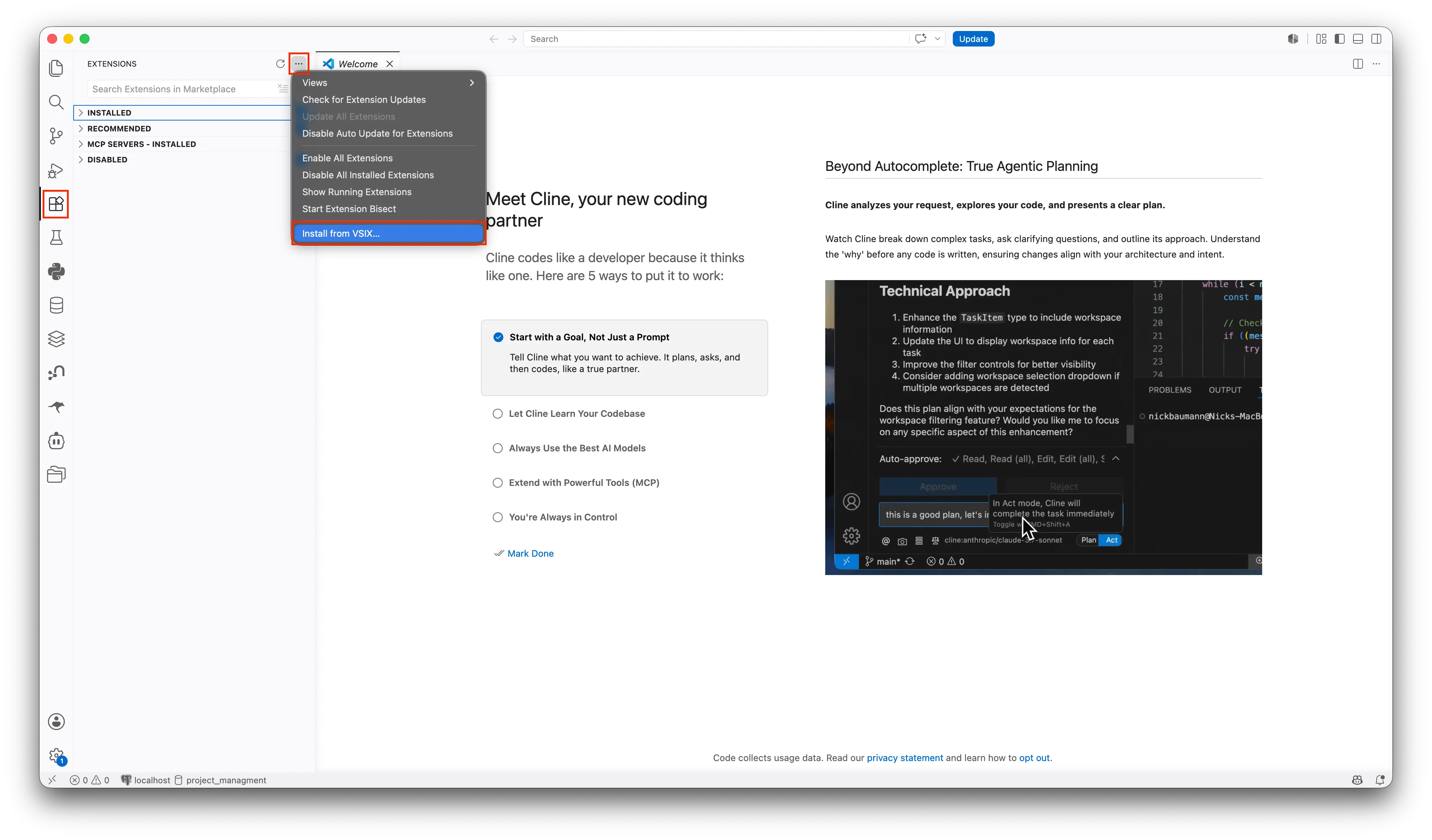
.vscode/extensions. - In VS Code, open Extensions, open the three-dot menu, and choose Install from VSIX.
- Select the downloaded file and reload VS Code.
- Download the Cline VS Code extension from AI Coding Plugins.
- If you are updating an existing installation, delete the old Cline extension folder from
.vscode/extensions. - In VS Code, open Extensions, open the three-dot menu, and choose Install from VSIX.
- Select the downloaded file and reload VS Code.
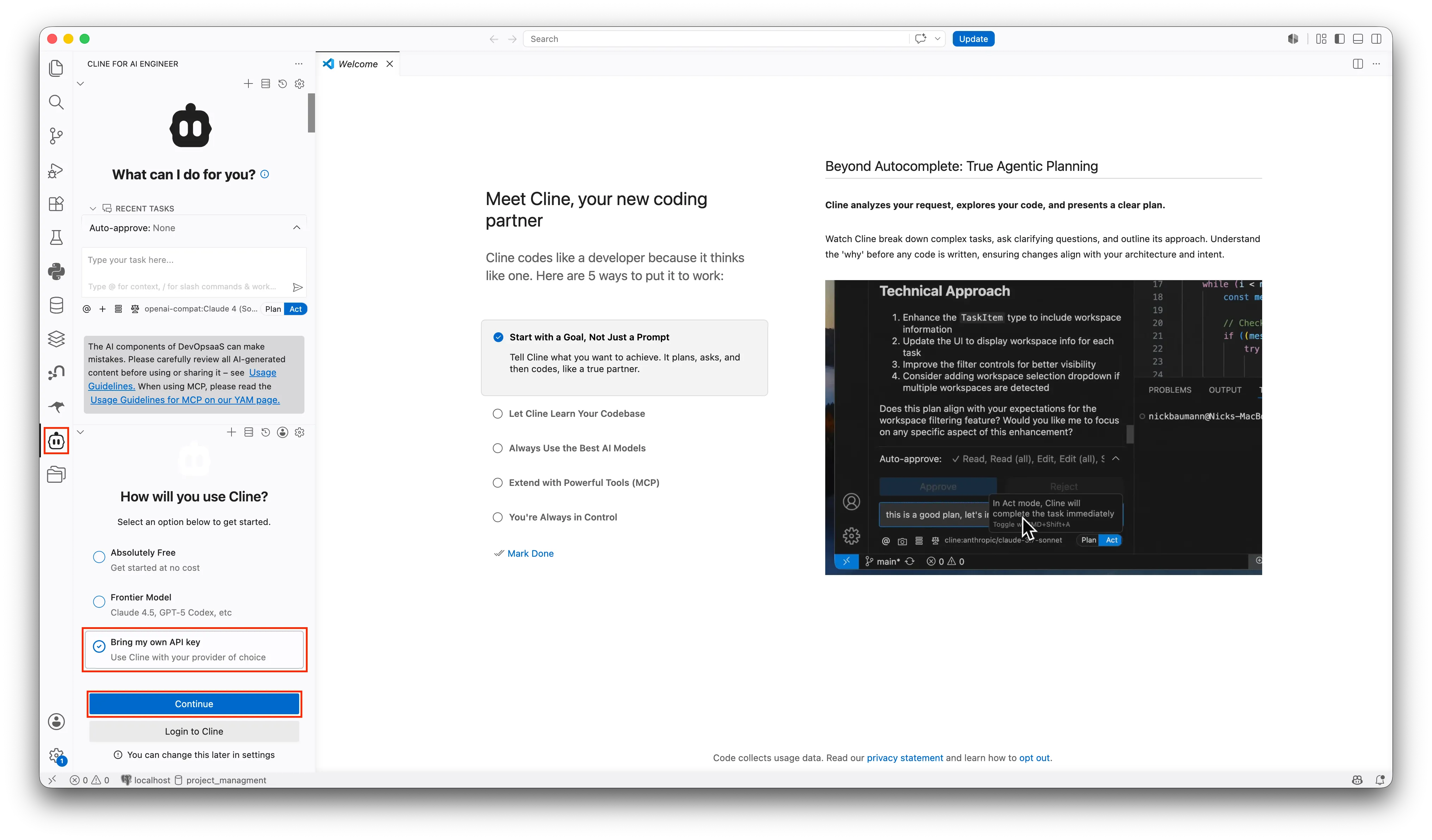
- Open Cline for AIE Engineer
- Select Bring my own API Key and click Continue.
- In the welcome screen, set up the API Configuration.
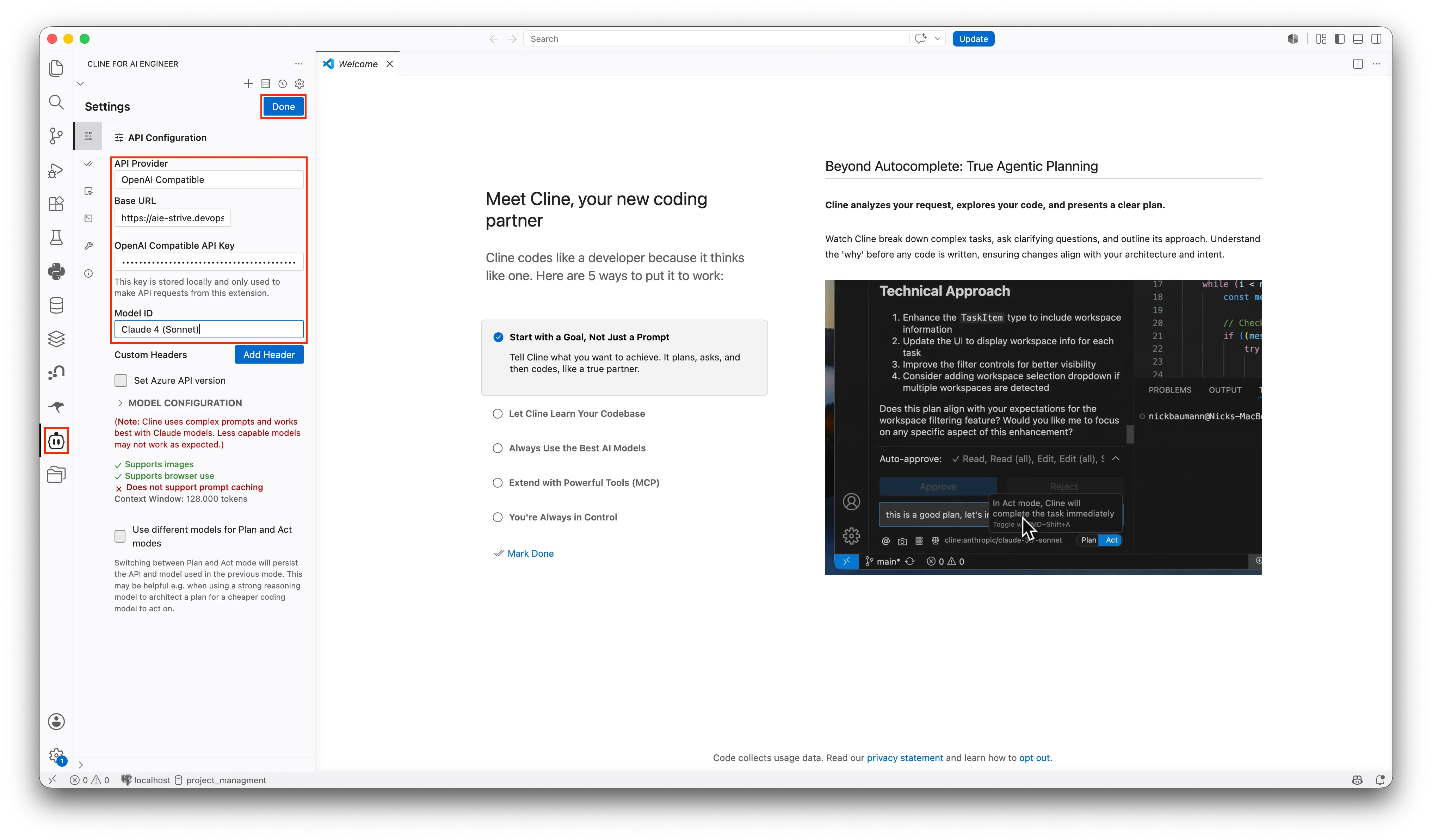
- Set the API Provider to
OpenAI Compatible. - Set the Base URL to
https://llm-server.llmhub.t-systems.net/v2/coding. - Generate an API key and paste it into the OpenAI Compatible API Key field.
- Choose a model ID and paste it into the Model-ID field.
- Click on Done
- Set the API Provider to
You can now start a chat and use Cline in VS Code.
Updating
Section titled “Updating”After setup, Cline can fetch newly published versions automatically. When you start or reload VS Code and an update is available, a popup appears.
- Click Yes to download the latest version.
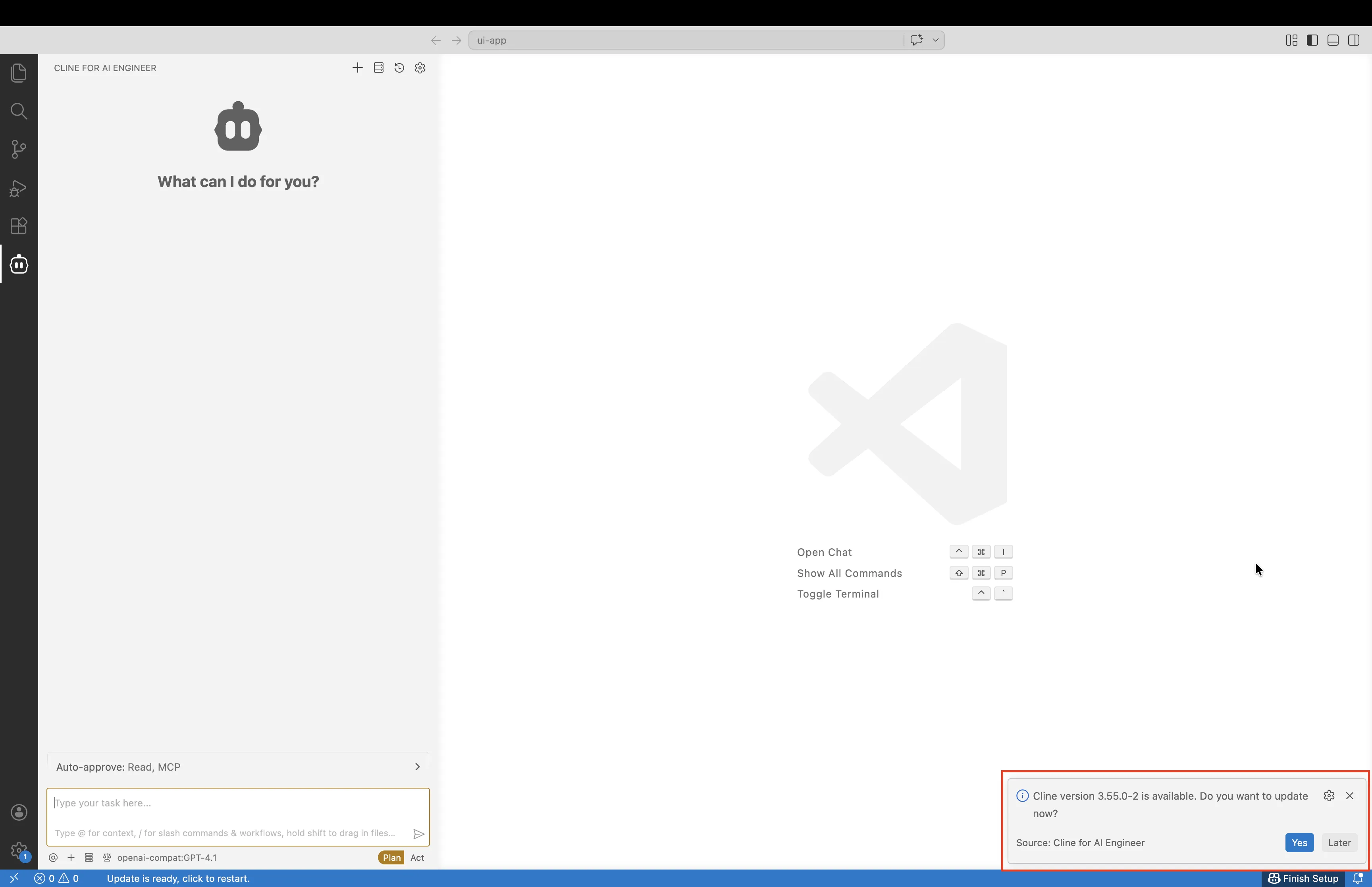
- After the download finishes, click Reload Now to restart the extension.
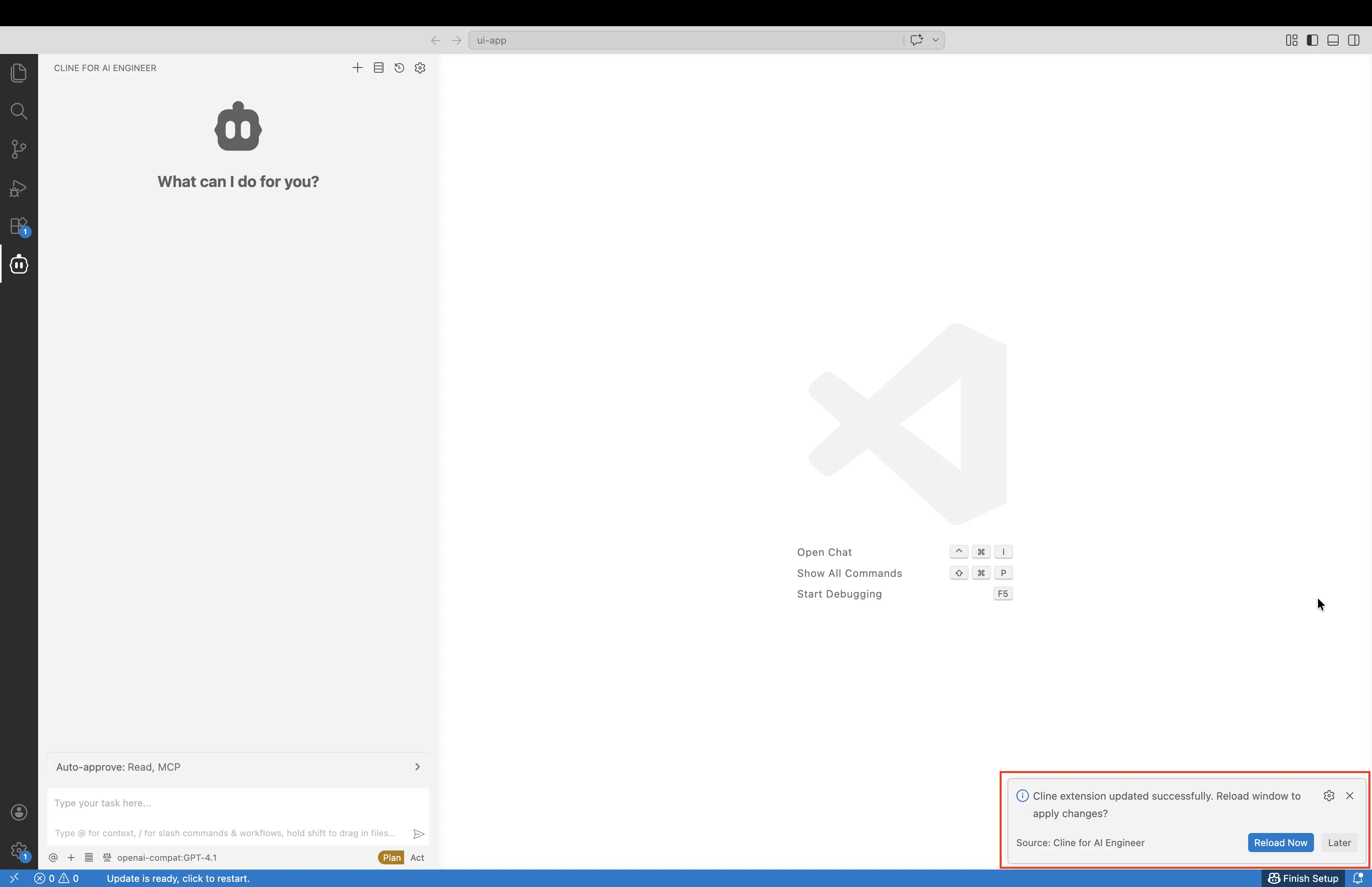
After Visual Studio Code restarts, the latest Cline version is ready to use.